- Published on
Claude Desktop + Filesystem MCP = Excellent Code Collaboration Setup
- Authors

- Name
- Michael Ben-Nes aka Miki

So here is the use case. I wanted to collaborate with AI on code design. so within Claude Desktop I created a project with an appropriate system message and started a conversation with the AI.
But here's the problem, the AI does not have access to my code and attaching documents or describing the situation is neither easy nor provides enough details.
Lucky me, it's possible to add an MCP integration that can browse the local file system and add what is appropriate to the context.
So let's do it:
Prerequisite:
- Install Claude Desktop - currently not available on Linux 😡
Setup
Open Claude Desktop and go to settings (on mac cmd+,)
On the left side click Extensions and then click Browse extensions. On top choose the Desktop extenions tab and then click Filesystem
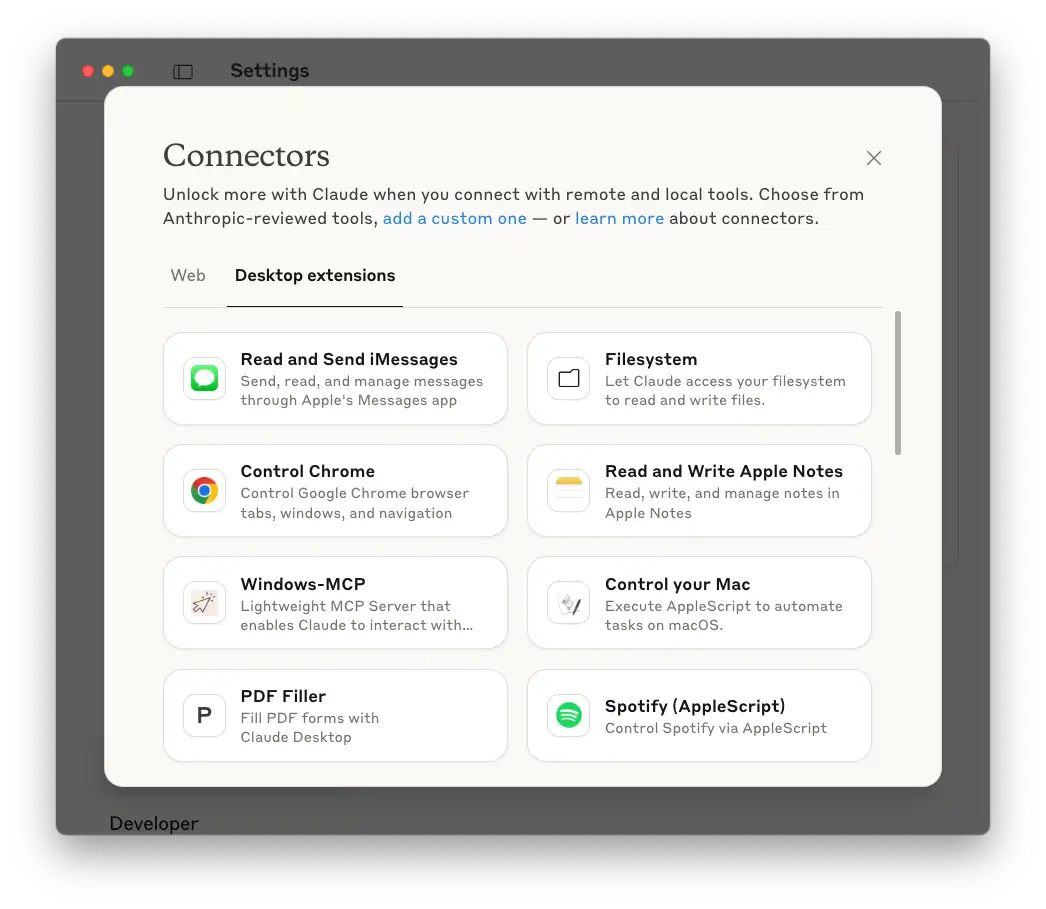
Review the description, requirements and associated tools (know what can go wrong!) and click Install.
When the installation is done, click Add Directory to allow the MCP to access your files. You can add more than one, for example the first can be documentation dir, the second can be a code repo. Then click Save and then toggle the top button to Enabled.
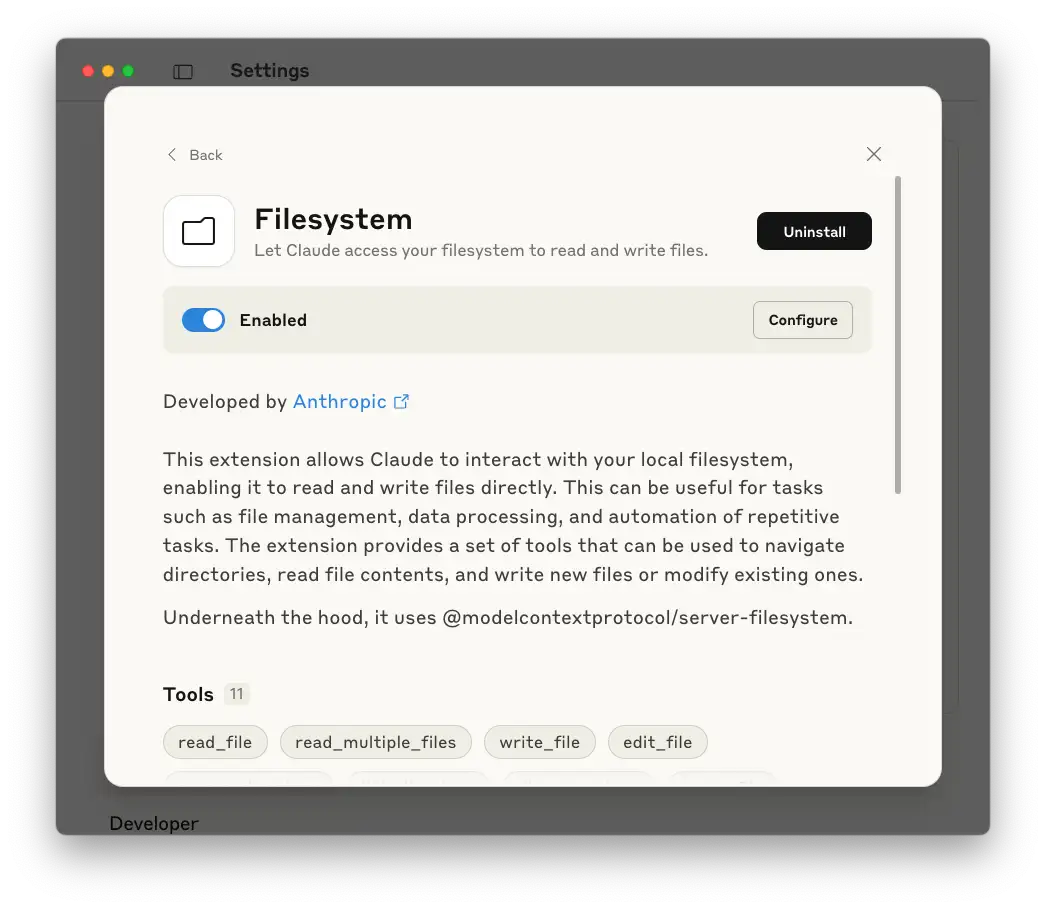
Close the Settings window and restart Claude Desktop. Restart is not always necessary, but I had a few strange issues after configuring MCP servers and not restarting.
Now let's test, ask the AI to Summarize the README.md file content
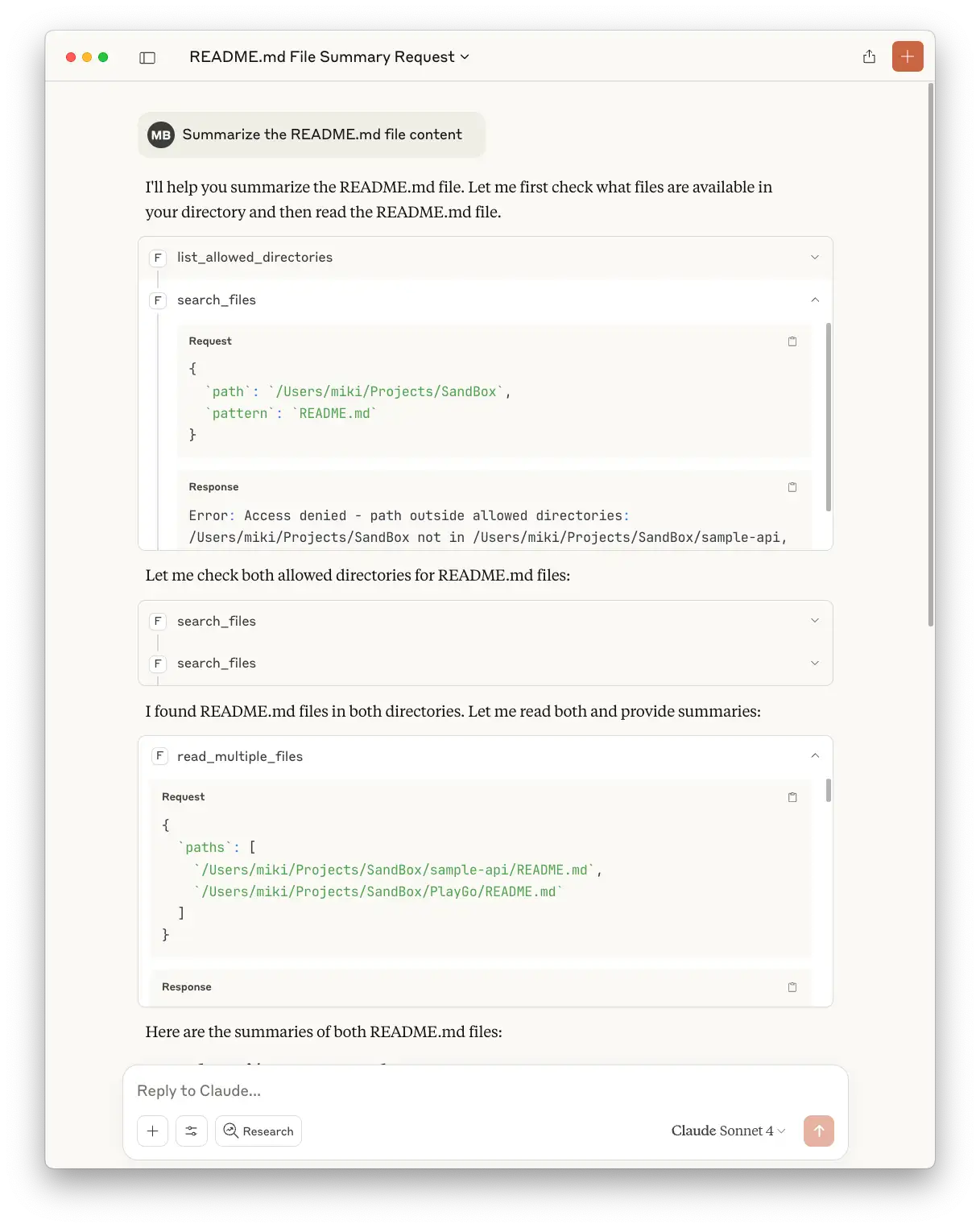
It worked! but there are a few problems.
The first problem is that it does not know where to search for the file so extra tools are executed for the discovery:
- Execute the list_allowed_directories tool to find what directories exist.
- To save actions it executes the search_files tool on the root directory and receive permission denied (because it's not in the scope).
- Fall back and execute the search_files tool on both directories.
- Execute the read_multiple_files per shared directory (twice in our case).
The second issue is that two files have been found and in most cases that's not what we want.
So to solve this, I modified the query and reran (note that I added specific location to the prompt)
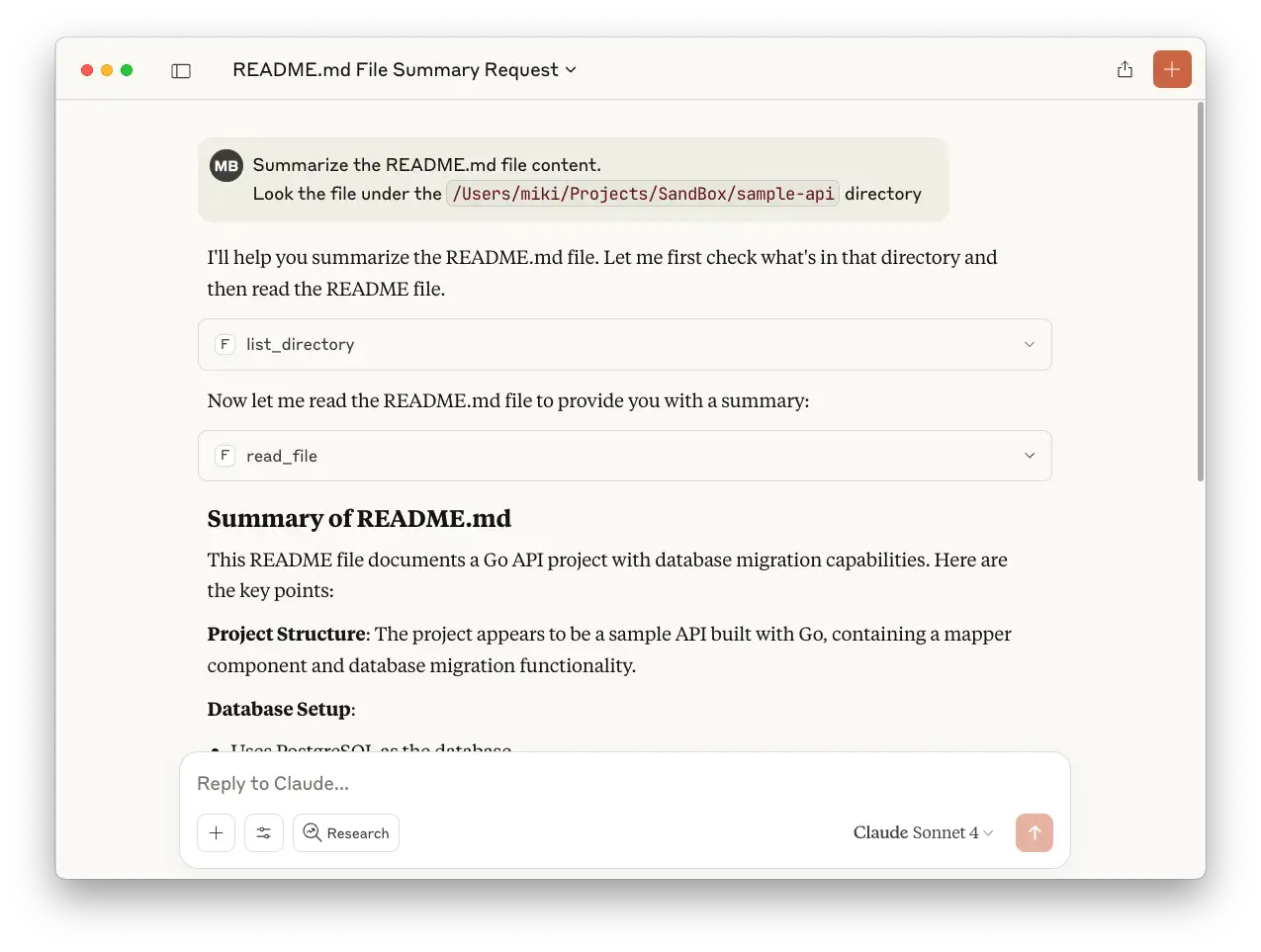
Amazing! by prompting the requested directory, I got the right file and the tool count went down from 5 to 2.
But Stating the location or any other rule over and over again is cumbersome.
This can be improved even further using Projects. So:
- Click Projects on
Claude Desktopleft column. - Click New Project on the top-left side.
- Fill the Name and click Create Project
- Click Set project instructions and add your rules. Like Persona, project description and etc (now I will focus only on the Filesystem MCP):
- Append the following snippet and click Save instructions
### Filesystem MCP Directives ###

1.  **Root Directory:** The operational root is `/YOUR/PATH/TO/PROJECT/DIR`. All relative paths originate from this location.
2.  **File Filter:** Only process files with the `.md` extension.
3.  **Ignore Rule:** All other files and directories that do not meet the `.md` criteria must be ignored.
Now let's run the query: Summarize the README.md file content
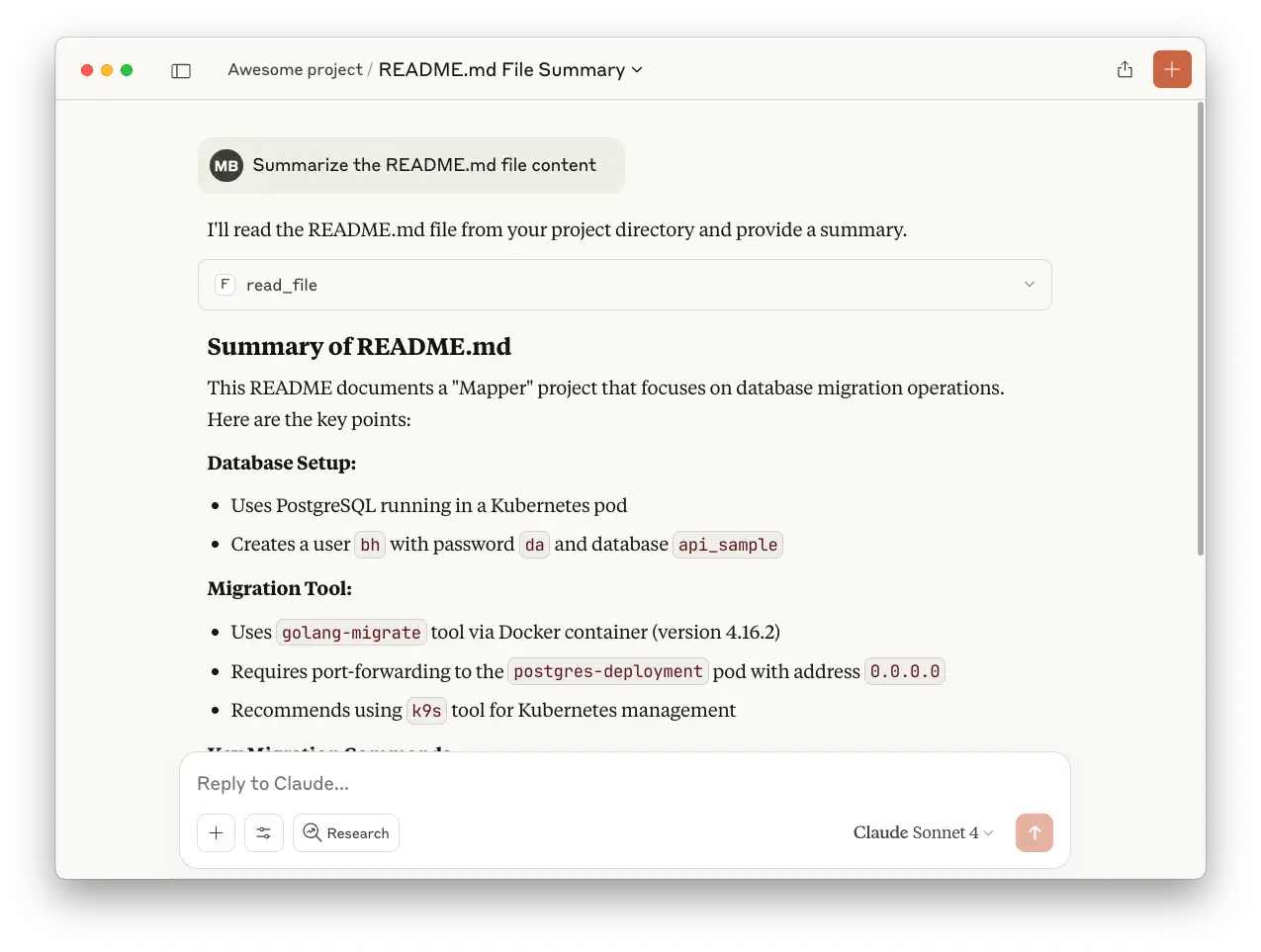
Wonderful, the file was found in one shot!
Note about the rules
There are no perfect rules. It all depend on your scenario and needs. So experiment with the result and iterate. In my example I wrote some basic rules and asked the LLM to improve. Then picked the simple option.
Here, is the prompt:
You are a prompt engineer that know how to fine tune MCP servers behavior using prompt.
Improve the following prompt that will be used for the `Filesystem MCP` server:

* Assume all files are under the `/YOUR/PATH/TO/PROJECT/DIR` directory and it is the root for any relative path.
* Ignore files that do not end with the `md` extension
* Any relative path should be considered as extension to the root directory